Using Strings For Incident Investigation?

What is Strings?

Strings is a tool which is used to extract string (Text) from a program or any other file. By default it extracts a string having a minimum of 4 charterers (but this can be changed by using the -n switch).

How does the Strings work?

Strings can be helpful to find out any text (such as url’s). Even though Strings is a really helpful tool but can not be completely relied upon. you can not rely on Strings solely because the attacker also knows that you might use Strings therefore can plant false flags in the program to confuse or derail you from your analysis.

How does the Strings work?

  1. Open CMD/Powershell (from Windows) or Terminal (*NIX)
  2. Go to the directory where you have saved the Strings program (Downloads in this case)
  3. Use Strings
    • Syntax: ./strings.exe

Examples:

  1. Here we have used strings on the strings software itself.

2. Here we have used strings on the Eula.txt file.

Using Regshot For Incident Investigation?

What is Regshot?

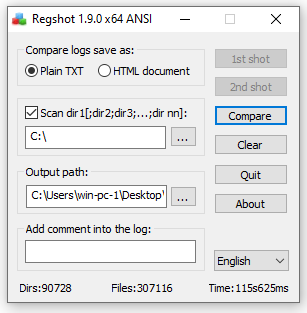
Regshot is a tool typically used for dynamic malware analysis. Even though the tool is typically used to analyse the malware changes but it can be used to track any changes made in the file system and the registry.

How does the Regshot work?

  1. We choose the result file format (In this case: plain txt file)
  2. check the scan directory check mark (In this case the whole ‘C:/’ drive)
  3. Choose the output location for the file (In this case the Desktop)
  4. Add any comments you would like to be in the logs (None in this case)
  5. Click on the 1st shot & choose shot or shot & save (I did a shot)
  6. Install the software or make any change you want (I installed VS code)

6. When you see the 2nd shot button click it and choose shot or shot & save (I did a shot)

7. Click compare, it will open the notepad file and then you can find all the changed in that notepad file.

How to setup event log forwarding in Windows and collect event logs from remote computers into a central server.

  1. in the command prompt run “winrm quickconfig” and the press y when prompted to enable the WinRM service & the firewall exception. (On the end user machine)

2. Open “Computer Management” > “System Tools” > “Local Users & Groups” > “Groups”. Then select “Event Log Readers”. Click “Add”, Choose the required object types by selecting “Object Types” (for this example I will be adding my ADDC machine). After that enter the Machine or account name and then select “OK”. Then click “Apply” and “OK”. (On the end user machine)

3. Open the “Event Viewer” (On the server)

4. Go to “Subscription” & click “Yes” (On the server)

5. Right click on “Subscriptions” and the select “Create Subscription”.(On the server)

6. Here provide a “Name” & “Description” for the Subscription. Then Select the destination for the log in the “Destination Log” field. (On the server)

7. Go to “Select Computers” and then “Add Domain Computers”. (On the server)

8. Enter the “Computer Name” & click “OK”. (On the server)

9. Select the Computer and click on “Test”. once the test is succeeded then click “OK”. (On the server)

10. Go to “Select Events”, select the Required “Event Level” and the “Event Logs” and then click “OK”. (On the server)

11. Go to “Advanced”, Select the “Account”, “Event Delivery Optimization”, Protocol and the Port Number (I will be using the machine acc., Normal Delivery optimization, HTTP Protocol and Port 5985 for this example). Then select “OK”. (On the server)

12. Right click the subscription and to go “Runtime Status”, Make sure the machine status is “Active”, and wait for 15 min. After 15 mins, the logs should start coming in the chosen tab (Forwarded Events in this example). (On the server)